A FILE CHECK · BEFORE YOU REGENERATE
Custom coloring sheets: check the white background.
If a coloring picture looks dark on one screen but clean on another, check its background before regenerating the drawing. Use the paired diagnostic tiles below: the same black outline sits on either transparent pixels or opaque white pixels. Switch the display background to see the difference. This demonstration changes the preview surface, not your own files or the generator.
White preview surface selected; files unchanged.
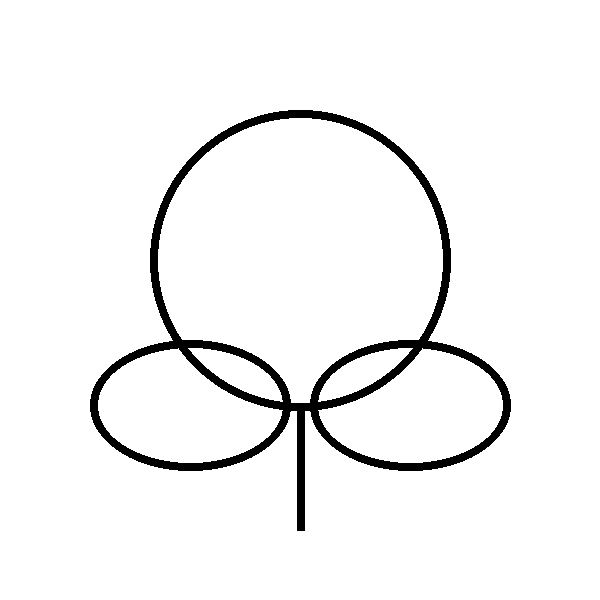
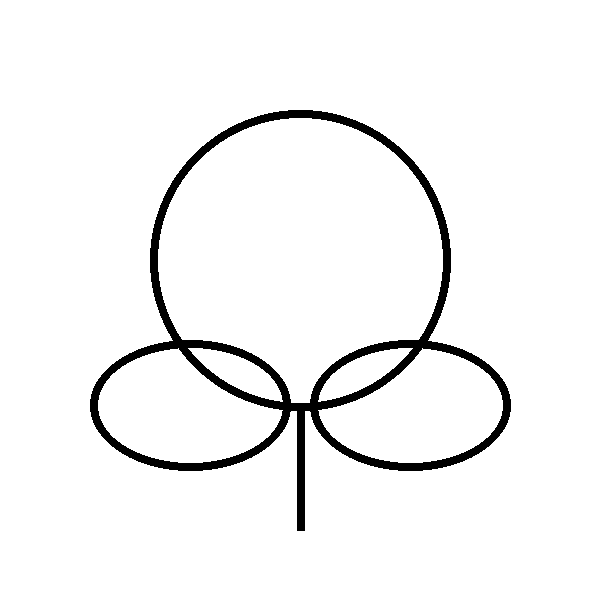
White pixels and transparent pixels are different
A white background is part of an image: it covers whatever lies behind it. A transparent area lets the surface underneath show through. On a white page they can look identical. On the blue or charcoal surface in this demonstration, the transparent tile reveals the surface color while the white-backed tile keeps a white rectangle. The line drawing itself is unchanged.
The two downloadable PNGs are deliberately simple diagnostic fixtures, drawn for this experiment rather than generated decorative coloring pages. Both are 600 by 600 pixels and use the same line mask. The transparent fixture has transparent empty regions; the opaque fixture has white empty regions. Their modest loop-and-leaf pattern makes background behavior easier to inspect. They are not additional robot-gallery choices and are not examples of a user's uploaded photo.
Compare the fixtures on three surfaces
Start with White. Then choose Blue or Charcoal. The surrounding boxes change color, but the buttons do not rewrite either image. Compare the broad area outside the loops first, then look inside each loop. In the transparent fixture both spaces reveal the selected surface. In the white fixture the spaces remain white. The charcoal view can make black outlines hard to distinguish; it does not prove the file has lost its lines.
Download both samples if you want to inspect them in a viewer you already use. A viewer may use white, checkerboard or another surface for transparent pixels. The surrounding display is not automatically part of the saved image. Our paired samples are a controlled file demonstration, not a promise about every viewer or printer. You do not need to upload a personal image to use this page.
Use a short check before another generation
First, open the same file against a white surface. If the outline is now readable, keep that file while you inspect its transparency or document placement. Next, place it in the editor you plan to print from. Decide whether you want a white rectangle behind the drawing or want the document's existing background to show through. These are layout choices. Do not make the whole image partly transparent to hide a background: that can also weaken the black outlines.
For supplied CleanLine collection art, download the original PNG rather than the small WebP browsing preview. We checked the five existing camping PNGs used in our sequence planner: their decoded alpha values were fully opaque at the time of this release. That bounded check describes those five files, not all PNGs, every future AI output or the behavior of an image copied through another application. PNG supports transparency, but the filename extension alone does not tell you whether a particular image uses it.
Keep an untouched source copy before changing your own files in an editor. If an edited copy looks different, compare both versions on the same surface and at the same zoom. An apparent improvement caused only by a different display background is different from changing the drawing. This page supplies neither a background-removal service nor a batch conversion tool, and it does not change the site's text or photo generation workflow.
Keep screen display separate from print settings
A preview surface is not a paper specification. If you assemble a document with colored page backgrounds, inspect whether those backgrounds are included in its PDF or print preview. A transparent picture can reveal that document color. A white-backed picture covers it within the image rectangle. Compare the entire finished sheet rather than the isolated picture, and preserve the artwork's proportions when sizing it.
We have not tested a physical printer or measured ink use for these fixtures. For a paper project, inspect one preview and make one proof with your own equipment before producing several copies. Changing White, Blue or Charcoal here does not change a printer's color settings. The downloadable fixtures remain their original 600-pixel files; they are not A4 PDF sheets, vector replacements for PNG artwork or commercial print certifications.
For the file-format distinction, see MDN's PNG reference. For why applying opacity changes an entire element, see MDN's opacity documentation. The practical evidence on this page is the paired original fixtures and the inspected files; we do not infer a search ranking or a printer result from this experiment.
FAQ
Does a PNG always have a transparent background?
No. PNG supports transparency, but a particular PNG can be fully opaque. The file extension alone does not establish its alpha values.
Do the surface buttons change my downloaded picture?
No. They change only the background of the two preview boxes. The downloadable samples remain unchanged.
Are these diagnostic tiles AI-generated coloring examples?
No. They are original controlled line-pattern fixtures made to compare transparent and opaque backgrounds. They are not gallery additions or uploaded photos.
Can this page remove the background of my photo?
No. This page demonstrates background behavior and supplies two test PNGs. It does not accept uploads or edit your files.
Have these samples been physically printed?
No. File properties and browser previews were checked, but physical printing and ink use have not been tested.
More practical checks
Inspect AI-generated coloring page outlines, compare Light and Bold line styles, or use the AI coloring page generator for an individual picture.