OUTLINE QUALITY / RASTER WORKFLOW
Photo to line art
Turn a permitted JPG, PNG or WEBP into a raster outline with the existing browser photo tool. This guide focuses on readable edges and the difference between an image trace and editable vector paths. CleanLine exports PNG or a single-page PDF; it does not create an SVG trace or guarantee a perfect contour.
Open Photo to outline ↗Use a line art generator to trace an existing image
Photo mode starts with visible structure in your file rather than inventing a new subject. Select the photo, choose Light or Bold, and inspect the result. The optional Remove background control is not a manual editing brush. Text mode is different: it sends a description to Workers AI to create a new scene. If keeping the original pose matters, start with the photo workflow instead of rewriting the picture as a prompt.
Crop away unrelated objects before selecting the file. A strong shadow may become an unwanted line, while a blurred boundary may disappear. The tool cannot reliably reconstruct what the photograph does not show. Keep a copy of the source so you can compare the trace with the original and decide which edges matter for your intended use.
Inspect real raster outputs before choosing a style
The examples below are actual PNG downloads from our earlier controlled comparison. The source was our own illustrated card, not a camera photograph. Both runs used portrait output with background removal off. Light had thinner marks and an incomplete card border; Bold had heavier lettering and a more complete border. This single case does not establish which style works best for portraits, fur or a busy background.
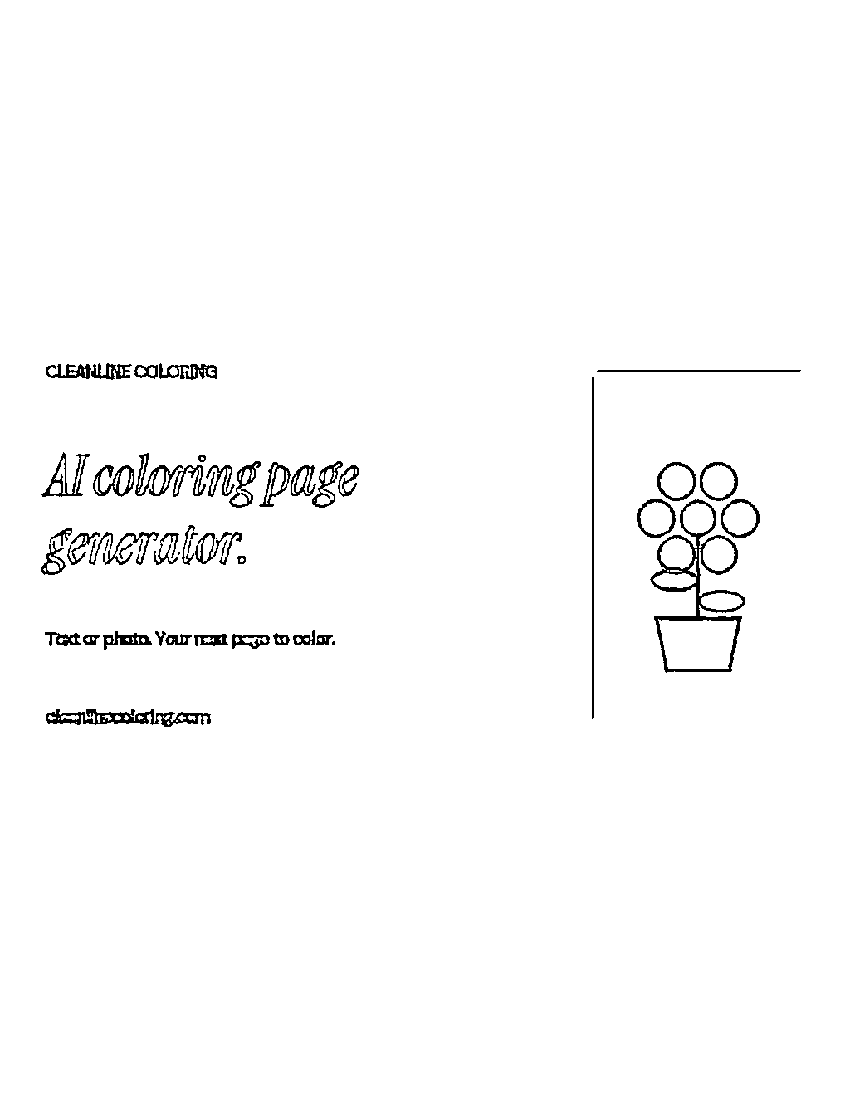
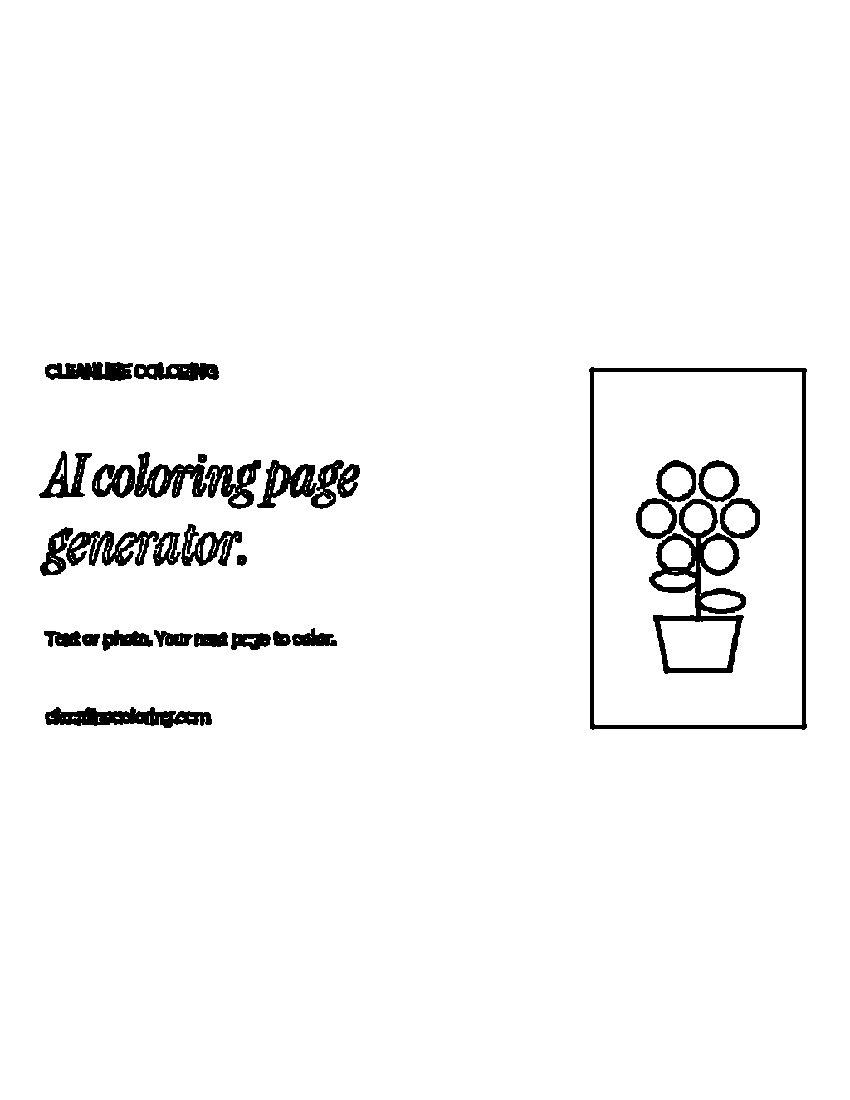
Check continuous boundaries, small enclosed spaces and whether neighboring features merge. Zooming in can reveal a broken edge, but a zoomed preview is not a physical print test. Compare the same source and paper shape when changing styles so you do not confuse a shape change with an outline change. Read the full comparison and original input for the limits of this observation.
Save the right format for the next step
PNG is a raster image: enlarging it does not turn its pixels into editable curves. The downloaded PDF places the result on one page; it is not an SVG tracing service or a multi-page manuscript. If you need editable paths, use a separate vector-tracing workflow and inspect its result yourself. CleanLine does not perform that step or promise an editing application will interpret every line correctly.
Choose the output shape before generating and check the downloaded file in a suitable viewer. A landscape input can occupy a horizontal band inside a portrait page, leaving white space above and below. Pick orientation for your intended document and inspect scaling before printing. We have not tested a physical printer. For coloring activities and general photo selection advice, use photo to coloring page; this page concentrates on outline quality and downstream file use.
FAQ
Is this a different photo-processing engine?
No. It opens the existing Photo to outline mode. This guide explains raster quality and export decisions, rather than introducing a second converter.
Does line art generator mean text generation here?
In this guide it means tracing your existing image. Use the homepage text mode when you want an invented scene from a description.
Can I download editable SVG paths?
No. The photo tool exports PNG and a single-page PDF. The prepared SVG collections elsewhere on the site are separate original illustrations.
Is my selected photo uploaded?
The linked photo workflow processes it in your browser. Model and code downloads, normal hosting requests and text generation have separate data flows described in our privacy policy.