AI GENERATED COLORING PAGES / KNOW THE ACTUAL FILE
An SVG wrapper is not a vector redraw.
A coloring picture saved inside an SVG can still be a pixel image. Changing a filename or placing a PNG inside an SVG does not recreate editable outlines. Compare our three prepared files below: a real path drawing, its 600 by 400 pixel PNG, and an SVG containing that same PNG. The page renders all three at four times their original dimensions and lets you save the actual result.
Compare the same enlarged area
Loading prepared files…
Original sources: Path SVG · 600px PNG · SVG containing that PNG
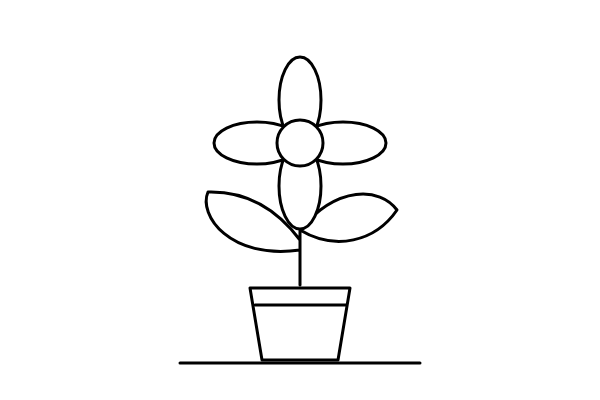
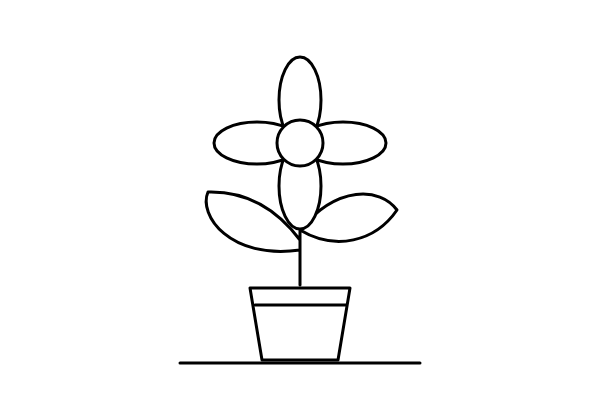
One diagram, three different file structures
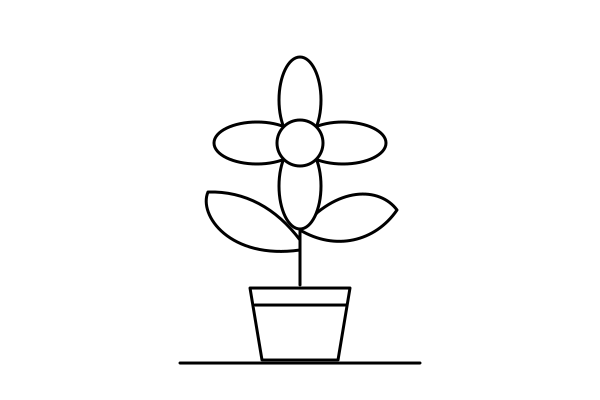
We made a deliberately simple flower diagram from paths, ellipses and a circle. It is a controlled test pattern, not another gallery illustration or an AI output-quality example. The first SVG stores those shapes directly. We rendered it once at 600 by 400 pixels to make the PNG. The third file uses an SVG image element to embed that exact PNG; it contains no replacement flower paths.
The comparison keeps a white background, the same 600 by 400 coordinate area and the same drawing placement. The browser renders each source into a 2400 by 1600 pixel canvas with image smoothing enabled. Each displayed detail copies the same 120 by 80 source-coordinate area from that larger result, showing a 480 by 320 pixel close-up. The selection controls which complete rendered PNG you save; it does not change or trace the source file.
| Comparison | RGB-different pixels |
|---|---|
| Embedded PNG SVG vs PNG | 0 |
| Path SVG vs PNG | 125,567 |
| File | Bytes |
|---|---|
| path-flower.svg | 680 |
| raster-flower.png | 21,874 |
| embedded-raster-flower.svg | 29,324 |
What the measured difference tells us
In our recorded browser run, the embedded-PNG SVG and the plain PNG produced identical RGB pixels at the larger canvas size. The path SVG produced different pixels along its redrawn contours. That is evidence about these exact files and this rendering setup. It is not a score for all SVGs, a sharpness guarantee for every browser, or a measurement of physical print quality.
The PNG is still a valid coloring picture. A raster file with enough pixels for its intended use may be entirely suitable. The important distinction is what the file contains and what editing you expect to do. A vector editor can treat the first file's paths and shapes as geometry. Opening the embedded version does not automatically turn its contained bitmap into separate flower petals or editable stem nodes.
The original file sizes below describe these tiny controlled fixtures, not a rule that SVG must always be smaller. An embedded image can make an SVG large, and complex vector artwork can also contain many points. Do not discard a useful PNG merely because a different extension sounds more professional. Keep the best permitted original and judge the actual output at the size you need.
Check a download before planning an edit
- Keep an unchanged original copy. If you downloaded a PNG, preserve it before trying another format or editor.
- Check the actual format and dimensions in your viewer or editor. A filename alone is not a dependable account of the stored content.
- For SVG, inspect whether the relevant artwork is made of paths or shapes, placed image elements, or a mixture. This example is controlled; it is not an automatic analyzer for arbitrary uploaded files.
- Try the specific edit you need. Moving a whole picture is different from changing one contour node or recoloring a separate shape.
- Review the result after saving. Tracing can change curves, close spaces, add nodes or omit small marks. It is a separate operation that needs its own check.
Our site's photo workflow creates a raster outline; it does not promise an editable vector tracing. The illustrated PNGs in the collections likewise remain raster files. Some activities provide genuine SVG worksheets whose shapes and text were authored as vectors. These are clearly labeled separately, and their existence does not make every illustration a vector. Use the photo to line art guide for that workflow's actual limits.
Choose by the job, not the extension
If you want to color a prepared scene on paper, begin with the original download rather than a smaller web preview. The source-pixel and placed-size comparison explains that separate question. If you want to redesign individual curves, look for genuine path content or plan a careful manual redraw. This page does not provide a tracing service, convert an upload, or promise that a bitmap can regain missing detail.
For a digital coloring app, test the actual file in that app. SVG import support and editing controls vary; an app may rasterize a vector on import. A successful import is not proof that all nodes remain editable. Keep exported copies separate from source originals and compare any small enclosed spaces before using a flood-fill tool. Our outline-gap experiment covers why a broken boundary can change a fill, which is different from the format distinction here.
If you are assembling a coloring book, preserve a record of each original source and the file you actually placed in the document. Mixing PNG illustrations with SVG design worksheets can be intentional. The general coloring-book planning guide explains proofing and assembly without claiming a bound-book generator. We have not tested physical printing of this comparison, and the measured canvas result is not a paper proof.
Use the comparison without uploading anything
The prepared files are public site assets. After they load, the canvas rendering and PNG export run in this page. There is no photo-upload field in this experiment, no image-model call and no credit purchase. The downloadable SVG sources have no scripts, remote fonts or external image references; the embedded fixture stores its PNG inside the file itself. This describes our supplied fixtures, not a security guarantee for SVG files obtained elsewhere.
For the underlying format distinction, MDN's SVG image-element reference documents that an SVG can display raster images as well as other SVG images. The experiment here demonstrates one such raster container. No competitor artwork or marketing statement is needed to establish what these three files actually contain.
Questions about SVG coloring files
Does renaming a PNG to SVG make editable outlines?
No. Renaming does not replace the stored pixels with vector paths. This experiment uses a valid SVG containing a PNG and shows that even a valid SVG can retain raster artwork.
Is the embedded SVG a new tracing of the flower?
No. It contains the exact 600 by 400 pixel PNG in an image element. The flower paths exist only in the separate path-based source.
Does this page convert my AI-generated coloring picture?
No. It compares three prepared controlled files. There is no upload, tracing or new image generation in this experiment.
Is the saved comparison PNG still a vector?
No. The download is the actual 2400 by 1600 pixel canvas render. Download the separate path SVG if you need our original vector fixture.
Does this prove an SVG will print better?
No. The measurements describe digital rendering of these exact files. Physical printing has not been tested, and the suitable format depends on the source and intended use.