CHECK THE FILE · BEFORE ENLARGING
Custom coloring sheets: check the pixels before printing.
Download the original picture, then compare its pixel width with the width you intend to place on paper. A small browsing preview can look similar on screen while containing fewer pixels. Use this calculator with our actual robot files to see the difference. The result is pixels per inch, not a printer-quality score or a promise that a sheet will print sharply.
Try a local mirror check for a coloring sheet before choosing its direction in a display.
Compare PNG and JPEG saving on a controlled outline before replacing your master file.
Compare source pixels at a placed width
Enable JavaScript for the calculation. At 6 inches: original 209 pixels/inch; preview approximately 106.7.
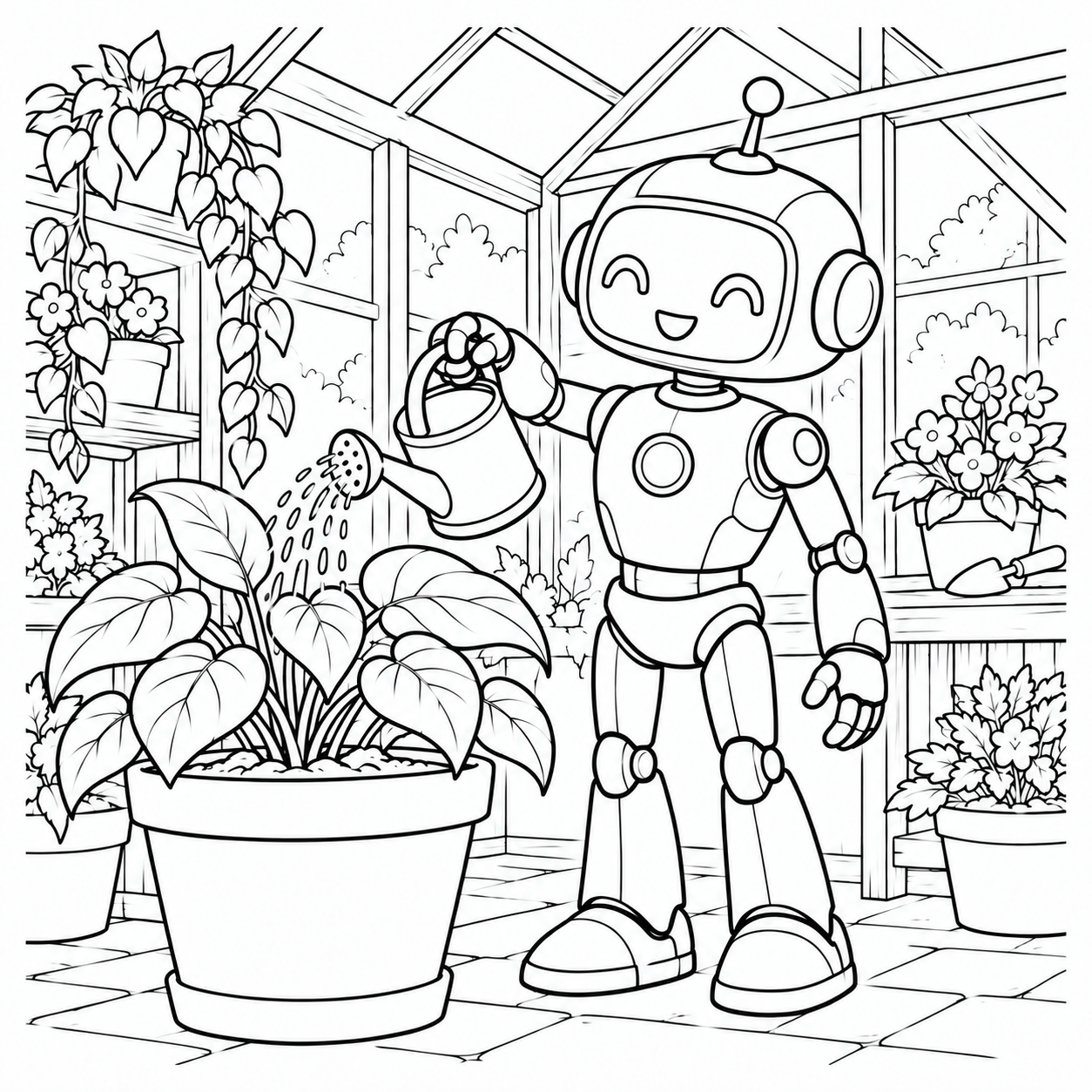
1254 × 1254 pixels ·
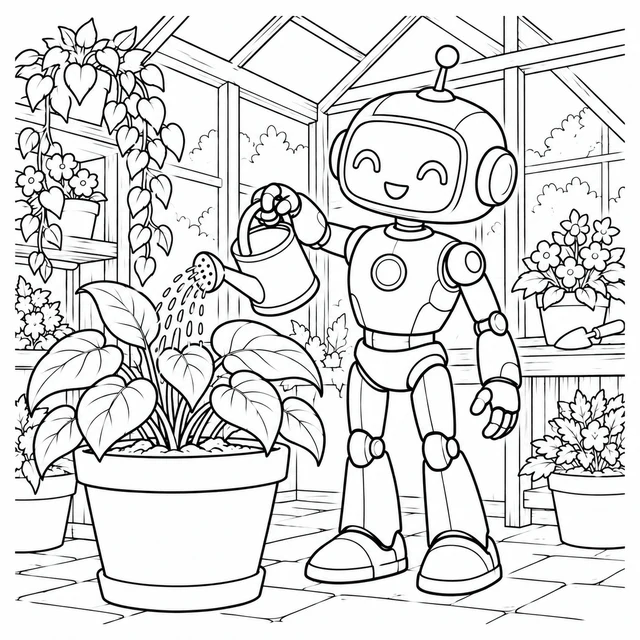
640 × 640 pixels ·
One drawing, two different file sizes
The greenhouse robot below is an existing reviewed illustration, not a new generation or a photograph. Its original PNG measures 1254 by 1254 pixels. Its smaller WebP browsing preview measures 640 by 640 pixels. We read those dimensions from the decoded files for this comparison. Both show the same composition, but they do not contain the same number of source pixels. The web preview is for choosing a picture; the original PNG is the collection's download.
Look at the fingers, leaf outlines and watering-can handle in the two views. At a modest screen size they can appear very similar. That does not turn the smaller file into the larger one. Screen zoom, browser scaling and display density affect what you see. The comparison here does not simulate a printer or claim that an individual line will survive a particular ink, paper or driver setting.
Calculate the pixel budget for your chosen width
The calculation uses one dimension: pixels per inch equals image width in pixels divided by intended picture width in inches. If you enter millimeters, inches equals millimeters divided by 25.4. The width is the drawing's placed width, not the whole paper width. For a square picture, preserve the same height rather than stretching it into a portrait rectangle.
At a placed width of 6 inches, the 1254-pixel original gives 209 pixels per inch: 1254 divided by 6. The 640-pixel preview gives approximately 106.7 pixels per inch: 640 divided by 6, rounded to one decimal in the display. At 8 inches the respective results are approximately 156.8 and exactly 80. These are arithmetic results using the files measured above and your selected width. They are not measurements of a finished sheet.
Change the width in the panel and compare both results. Increasing the placed width spreads the same pixels over more space; decreasing it does the opposite. Switching units changes how the width is entered. It does not resize either download or request another image from the AI service. You can save a small JSON record of the selected width, source dimensions and formula if you want to reproduce the calculation later.
Choose a file before choosing a layout
Begin on the robot coloring collection, choose the intended scene and download its full PNG. Keep that source untouched. If you have already saved a small preview, compare its dimensions with the collection's original instead of assuming that two similar filenames are equivalent. A file's extension is not enough to establish its dimensions: PNG and WebP files can each contain many different pixel sizes.
Next decide how much of the paper the illustration should occupy. A single large drawing, a small invitation panel and a bookmark need different placed widths. Use the available file dimensions for each layout. If the calculated density changes, that reflects the width you selected; it does not tell you which activity is better. The worksheet may have enough broad shapes at one size and uncomfortable tiny gaps at another. Inspect those actual shapes rather than relying only on a number.
This is separate from fitting a square drawing onto A4 or Letter. That helper arranges a picture on a page-shaped canvas. This page checks the source-pixel budget before enlargement. It also differs from our white-versus-transparent background check, which examines what appears behind an image. Neither operation adds missing source detail.
Keep resampling and physical output separate
An editor can save an image with more pixels by resampling it. The new dimensions alone do not prove that previously absent line detail has been recovered. Keep the original and an edited copy separate, inspect the actual outlines, and avoid presenting an enlarged preview as a higher-resolution original. Adobe's image-size and resolution documentation distinguishes pixel dimensions, placed size and resampling.
Pixels per inch describes the relationship between a raster image and its placed size. Printer dots per inch describes a different part of the output process. This calculator has no connection to your printer and cannot read its capabilities, paper margins or ink settings. A PDF container also does not automatically add detail to a picture inside it. Check the source file and the final document separately.
Open the final sheet in the application you actually use. Check whether its print dialog preserves your selected scale or fits the document to the printable area. A fit setting can change the placed width and therefore the effective pixel density. Make one physical proof if exact size or narrow coloring spaces matter, and measure it yourself. We have not tested a physical printer, this robot on paper, or any particular marker. The panel supplies arithmetic and real file dimensions, not a printing guarantee.
FAQ
Should I save the small preview or the original PNG?
Use the original PNG for this robot's collection download. It is 1254 by 1254 pixels; the browsing WebP preview is 640 by 640 pixels. The preview is useful for choosing a scene but has fewer source pixels.
Does the calculator change the image?
No. It calculates pixels per inch from source width and your selected placed width. It does not resize, upload, regenerate or rewrite either file.
Is pixels per inch the same as printer DPI?
No. Pixels per inch relates a raster image to its placed size. Printer dots per inch describes printer output. This panel does not read or test your printer.
Does a larger number guarantee a better print?
No. The number describes pixel density at the selected width. Actual outlines, scaling, paper, ink and printer behavior still need checking. Physical printing has not been tested.
Does the JSON download contain my pictures?
No. It contains the selected width, unit, supplied file dimensions and arithmetic results. It contains no image pixels, uploaded files or account information.