CUSTOM COLORING SHEETS / PDF PAGE SELECTION
Custom coloring sheets: choose the right PDF page
If the picture on a PDF page does not match the page number you entered, compare its thumbnail with its position in the file. A PDF can assign a separate page label to each position. Check the print preview before committing a stack of custom coloring sheets to paper.
Three different ways to identify one sheet
A visible caption belongs to the drawing. A physical position counts from the first page of the file. A PDF page label is navigation metadata. These can agree, but a cover or introductory section can make them differ. The two files below keep the same three drawings in the same order while giving them different navigation labels.
In our second file, the first physical page has label i. The next two have labels 1 and 2. Sheet B is therefore physical position 2 and logical label 1. A viewer that follows logical labels can interpret an entered 1 differently from a viewer counting physical positions.
Inspect the original three-page comparison
| Physical position | Visible caption | Ordinary PDF label | Relabeled PDF label |
|---|---|---|---|
| 1 | Sheet A, flower | 1 | i |
| 2 | Sheet B, kite | 2 | 1 |
| 3 | Sheet C, boat | 3 | 2 |
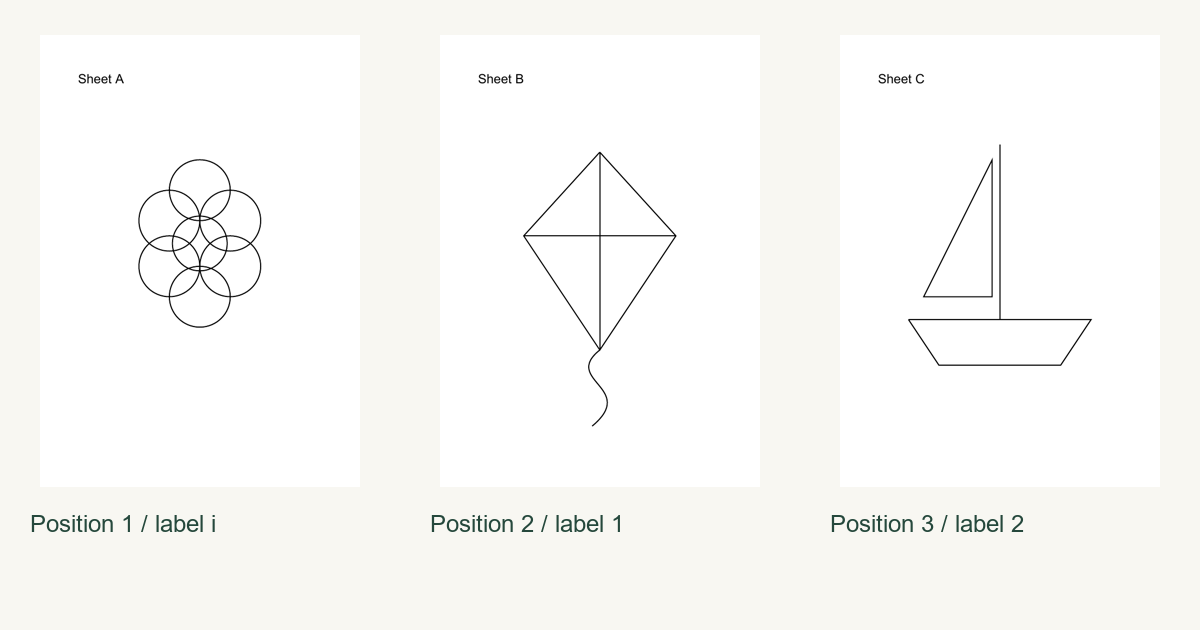
Download ordinary three-page PDF Download relabeled three-page PDF
What our files actually preserve
We created a flower, kite and boat as separate A4 outline pages. The ordinary file reports labels 1, 2 and 3. We cloned that document and changed only its page-label mapping to i, 1 and 2. Reading both files back confirms three pages in each, the same order and byte-identical decoded drawing streams for each corresponding page.
Poppler rendered every page at 72 dpi to 596 by 842 pixels. All three corresponding pairs have identical pixel data. Changing a label therefore changed navigation metadata in this experiment without redrawing the picture, moving it, cropping it or rotating its page. The visible Sheet A, B and C captions stayed in the drawing streams.
Choose by the preview before printing
Open the page thumbnails and identify the picture you want. Record its physical position and any displayed label. In the print dialog, inspect the selected-page preview and the number of pages selected. A one-sheet trial lets you check the intended picture before printing the rest of a pack.
Adobe documents that the Pages field uses page labels when logical page numbers are enabled. Other viewers can expose different controls. The supplied PDFs let you inspect your own viewer; this experiment did not test an external editor, every print dialog or a physical printer. Do not assume a typed numeral has the same interpretation in every application.
If the intended page is deliberately empty, compare the blank-backs sequence. If the right page has clipped edges or opens sideways, use the separate PDF boundary check or saved rotation comparison.
Questions about PDF page labels
Does renumbering the label change the printed caption?
In these files it does not. The Sheet A, B and C captions remain in byte-identical drawing streams and identical rendered images.
Which position contains the kite in the relabeled file?
The kite is physical position 2 and has logical label 1. Confirm its Sheet B caption and thumbnail before printing.
Will every browser use these labels?
Viewer behavior must be checked in that application. Our file inspection establishes the saved labels, while the Poppler comparison establishes matching page images.
Have these examples been physically printed?
No physical print test was performed. The checks cover PDF structure, decoded content and digital rendering.
Sources checked November 11, 2026. Adobe print settings and a public report of page-number selection mismatch.