Custom coloring sheets: check a sideways photo first
If a saved photo looks upright in one viewer and sideways in another, check whether its rotation lives in metadata rather than in the pixels. Our three downloadable diagnostic files show the distinction: one JPEG requests a clockwise turn, a second has the same encoded picture without that instruction, and a PNG stores the upright pixels directly. This is a controlled example, not a repair tool for your files.
Compare the actual files
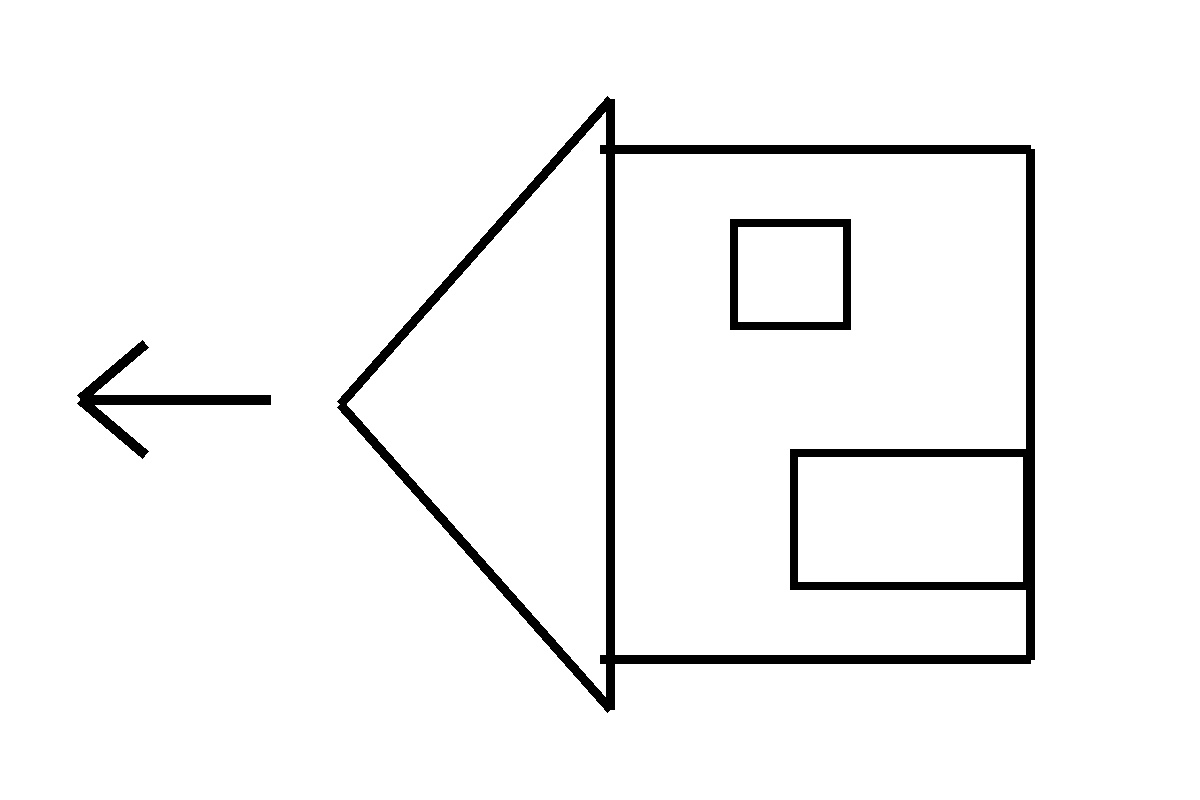
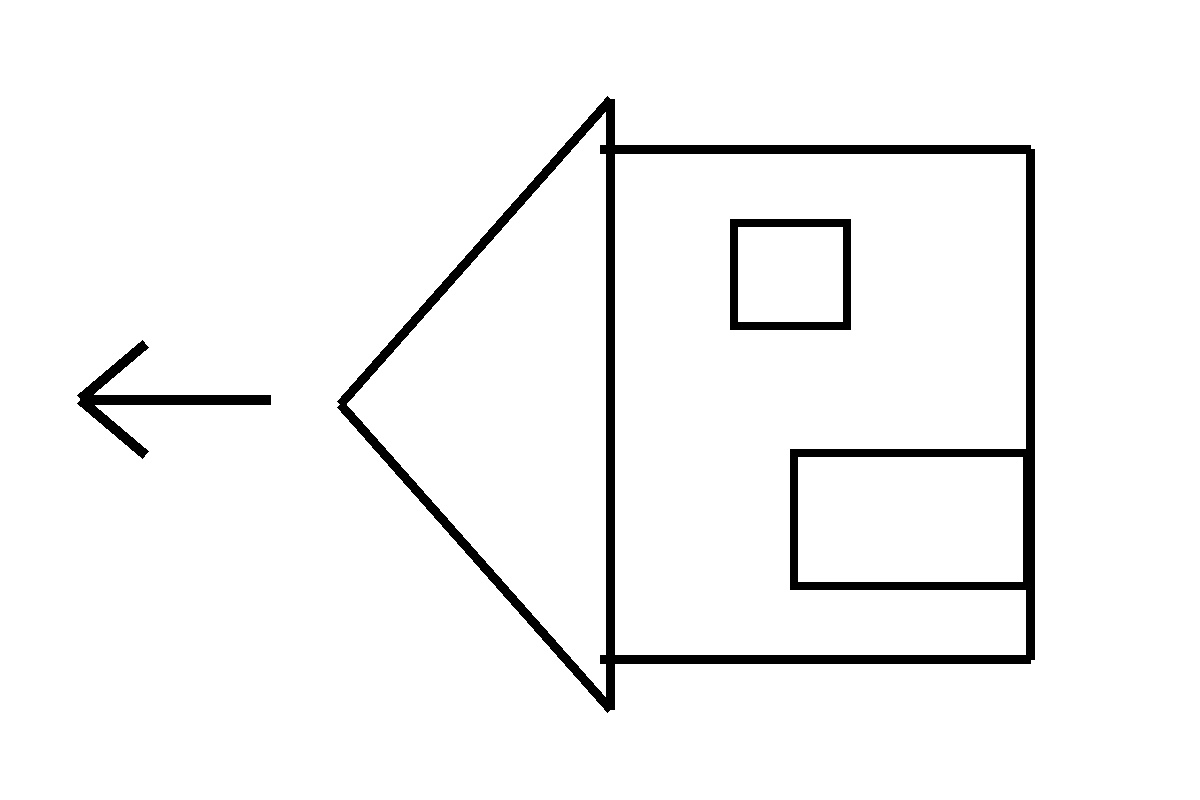
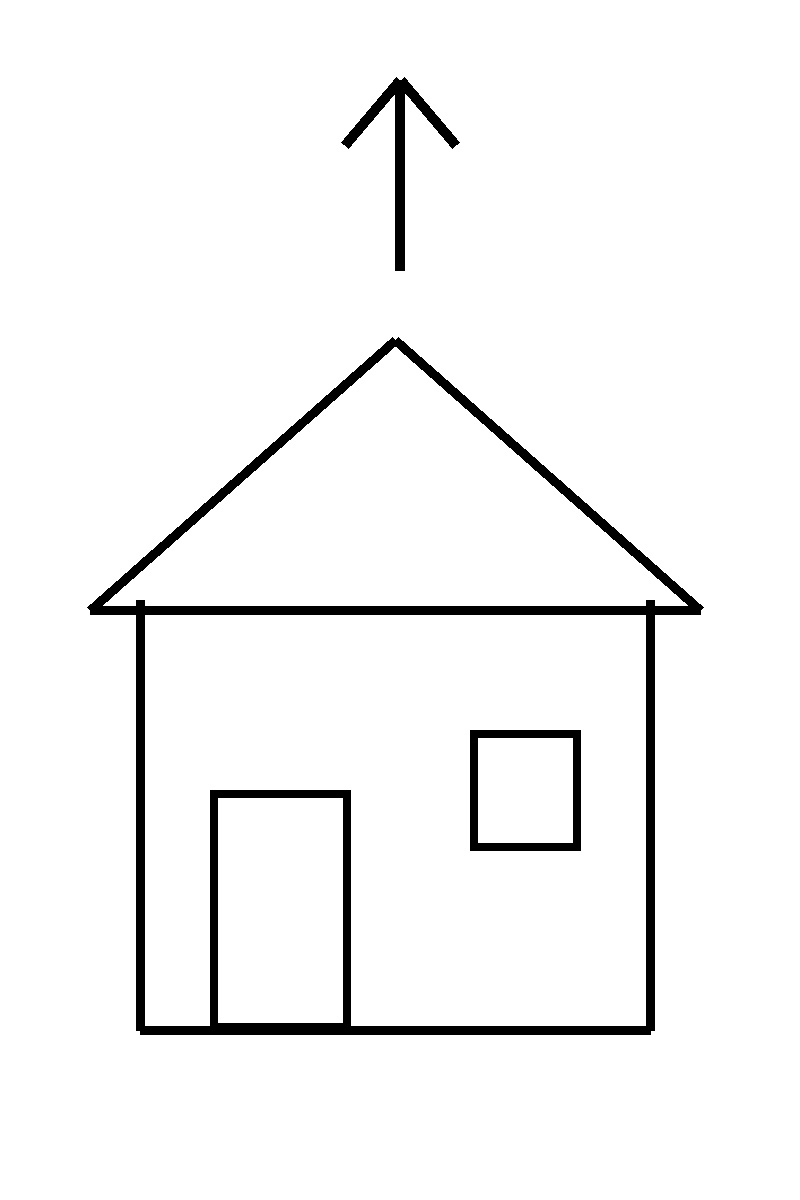
One picture, two ways to store its direction
A camera can store a sideways pixel grid together with an EXIF orientation instruction. A viewer that reads that instruction presents the picture upright. Removing the instruction alone does not rotate the underlying grid. It can expose a sideways result even though nobody redrew the subject. This is different from mirroring: the roof, door and arrow in this fixture retain their relationships while the complete picture turns.
Our original diagnostic drawing has a pointed roof, a door on one side and an arrow pointing toward the top. These deliberately asymmetric marks make direction visible. It is a functional test pattern, not a new AI illustration or a photograph of a real home. The files are offered so you can inspect the exact same example in your own viewer without uploading a personal photograph.
What the three files actually contain
The tagged JPEG stores a 1200 by 800 pixel grid with EXIF orientation 6. That instruction requests a 90-degree clockwise presentation. The untagged JPEG removes only the EXIF application segment: its compressed image data is unchanged. The upright PNG is produced by applying the tagged orientation once to the decoded JPEG pixels. It measures 800 by 1200 and carries no orientation instruction.
These dimensions describe this experiment, not every phone photo. The build checks that the two JPEGs decode to identical unrotated pixels and that the PNG equals the tagged JPEG after the instructed transpose. The selector reports the intrinsic dimensions supplied by the browser for each file. That live reading is useful evidence about this browser, rather than a promise that every printer, editor or uploading service handles metadata identically.
A cautious routine before making a coloring page
- Keep the original. Make a separate working copy so an unwanted rotation does not overwrite the photograph you meant to preserve.
- Open the actual saved file. A thumbnail or screenshot can hide which orientation information traveled with a download. Compare the roof or another recognizable vertical edge.
- Correct the working copy in a trusted editor. If you want direction stored in the pixels, use an editor that applies orientation when exporting. Merely deleting metadata is not the same operation.
- Reopen the export. Confirm its direction and dimensions before using the photo-to-coloring-page workflow. Inspect the generated outline separately; rotation says nothing about anatomy or line quality.
- Choose paper placement afterward. Source direction and portrait or landscape paper settings solve different problems. Use our fit-to-paper guide for placement without clipping.
Limits of this check
The sample covers a single quarter-turn instruction. EXIF has other orientation values, including reflected forms; those are outside this demonstration. Converting to PNG does not itself guarantee that an arbitrary editor applied the intended turn. Our PNG is upright because the build explicitly transposes its pixels, and we check that operation. The JPEG-to-PNG step also cannot recover detail lost earlier to JPEG compression.
The preview uses ordinary browser image decoding with no CSS rotation. Changing the selection changes the file, not a cosmetic transform. No personal image is processed by this demonstration. Physical printing and phone-editor behavior have not been tested. For the browser behavior described here, see MDN's image-orientation reference. For a separate left-right question, use the mirror comparison; for encoding artifacts, use PNG versus JPEG.
FAQ
Does removing EXIF make a sideways photo upright?
Not by itself. In this fixture the untagged JPEG has exactly the same stored pixels as the tagged file, but loses the clockwise presentation instruction.
Why are the two JPEG grids the same size?
Both store 1200 by 800 pixels. A viewer that honors orientation 6 can present the tagged image as 800 by 1200 instead.
Does the PNG add image detail?
No. It stores the decoded JPEG pixels after the orientation transpose. It preserves that result without restoring information previously lost to JPEG compression.
Can I use this page to fix my own photo?
No. This page switches between supplied diagnostic files. Use a trusted image editor for your working copy, reopen its export, then inspect the actual result.
Is this a print-orientation test?
No. Source-image direction is separate from paper placement. No physical printer or phone editor was tested for this example.