A SMALL PRINT-PREPARATION TOOL
Fit custom coloring pages to your paper.
To put a square coloring picture on portrait paper, keep its width and height equal, center it on a white page, and leave the extra space above and below. Do not stretch the picture to fill the sheet. Try that arrangement here with two reviewed illustrations, then download the page-shaped PNG.
Arrange one picture on A4 or Letter
This helper uses our prepared pictures. It does not upload a photo, generate new art or change the original drawing.
Smaller leaves more writing space. Larger gives narrow coloring areas more room. White margins are part of the file, not a guarantee about your printer.
Loading the prepared illustration…
Check source pixels before enlarging a coloring sheet when choosing your printed picture width.
Need to change empty image padding before placement? Compare white-border trimming without rescaling the drawing.
Choose a page shape without changing the drawing
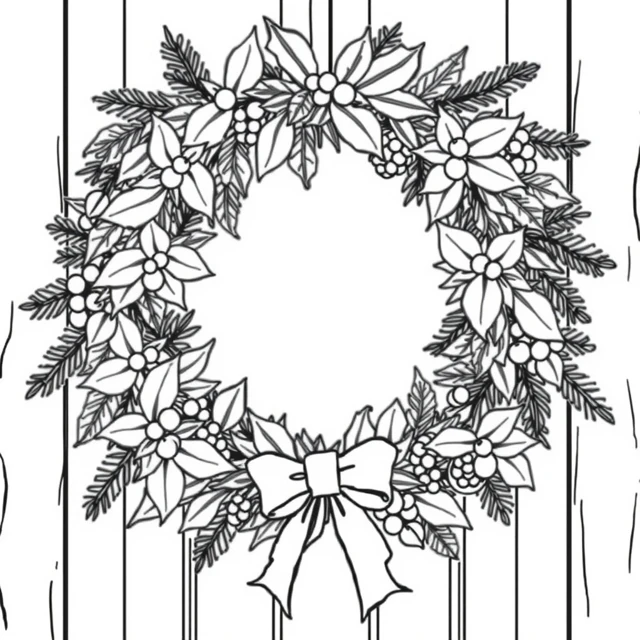
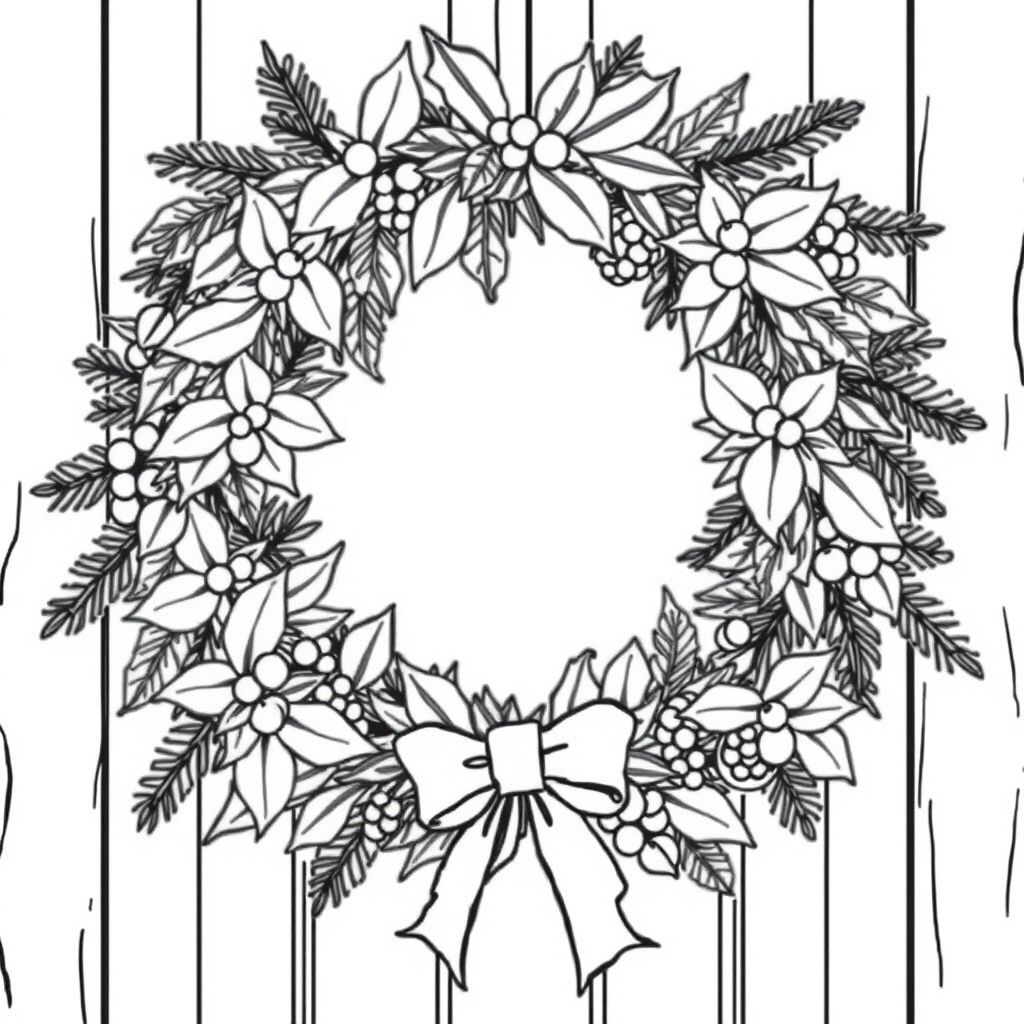
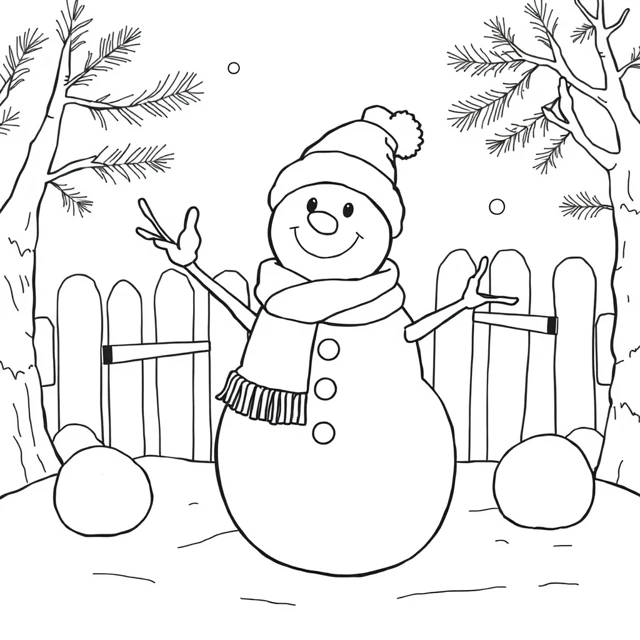
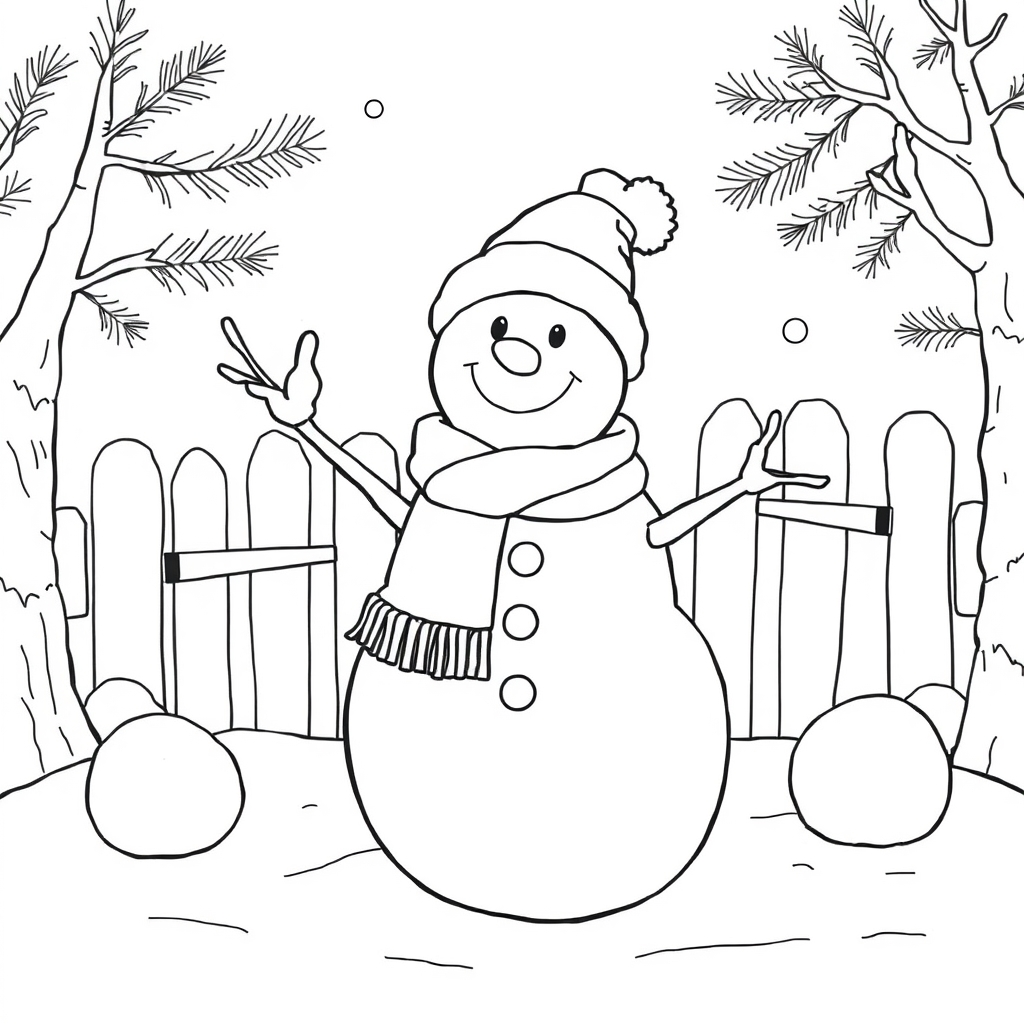
A square source image and a portrait sheet solve different jobs. The square defines the drawing's proportions; the sheet defines where that drawing sits. Stretching a wreath until it fills a tall page makes a circle into an oval. Cropping instead can remove outer leaves or the snowman's hat. Centering the entire square inside a portrait background avoids both changes. The white part around it is intentional working space.
The slider changes the width of the whole square, including white space already present inside the original illustration. It does not tightly trim around the black outlines. This distinction matters when comparing two pictures: a drawing with a generous original border can appear smaller even when both source squares occupy exactly the same area on the page. Select the preview that suits your activity rather than assuming equal slider values produce equal subject sizes.
Read the actual export dimensions
The Letter canvas is 1020 × 1320 pixels, matching the 8.5:11 page ratio. The A4 canvas is 992 × 1403 pixels, a rounded approximation to 210:297. The helper aims at about 120 pixels per inch at those paper sizes; it does not produce a 300-DPI master or assign a guaranteed physical size to a PNG. A file viewer and printer settings still control the final paper output.
At the default 80% setting, the Letter picture box is 816 × 816 pixels. It starts 102 pixels from the left and 252 pixels from the top. For A4, the rounded box is 794 × 794 pixels, with horizontal margins of 99 pixels and vertical margins of 304 and 305 pixels. The one-pixel difference comes from centering an even-height square on an odd-height canvas. Both layouts keep the full source image and use the same length for its two sides.
These figures describe the digital layout, not a ruler measurement on paper. The browser scales the source to the selected box, which can soften very fine outlines. A larger PNG canvas would not create additional source detail. Download the original 1024-pixel square if you want to arrange it yourself in a document with different output settings.
Use the spare space for an actual activity
A wreath page with a separate greeting
Choose the wreath and reduce the picture width if you want room for a short handwritten greeting above it. Check the loop and leaf spaces in the preview before choosing a thick crayon or fine pencil. This is a flat portrait worksheet, not a pre-folded greeting card: it has no fold marks, inside message or back design. For more seasonal choices, use the Christmas coloring pages collection.
A snowman page with a name or story
The waving snowman gives you a different shape to inspect: the hat, scarf ends and feet must all remain inside the source square. The blank lower area can hold a name, a short story or a description of the scarf colors. No text is automatically added by this helper. If you want multiple winter pictures rather than a single centered subject, the four-picture coloring sheet has a separate prepared layout.
Check the print preview before using paper
Save the arranged PNG, open it in your normal image viewer, select the matching paper size and inspect the print preview. Look for a setting that keeps the whole image visible. Avoid an option labeled fill or borderless enlargement if it crops the page edges. The exact names vary between applications and printer drivers. A4 and Letter are different shapes, so using the wrong loaded paper can create additional margins or cropping.
Use single-sided output when a blank reverse side matters to your activity. Black-and-white or grayscale settings may be appropriate for these uncolored drawings, but check how the viewer handles the white background. The helper does not control ink, supported paper weight, duplex alignment or printable margins. We have not tested physical printing. Try one sheet before preparing a group set, and follow your printer's instructions for suitable paper.
For file preparation outside this helper, MDN's canvas export documentation explains how a canvas becomes an image file. If you later place the image into a PDF, Adobe's page-size and fit guidance explains the separate print-dialog step. Neither source certifies this activity or your printer.
Keep the original files available
These two pictures come from the site's previously approved illustration set. Their original PNG files are unchanged; the helper only places a copy on a new white canvas. Downloads are supplied for personal and classroom activities, not as a ready-to-sell product or a blanket commercial license. The smaller WebP previews below are for browsing; the linked PNGs are the full-size square sources.
Custom coloring page layout FAQ
Does this helper stretch or crop the picture?
No. It draws the full square source into a square box and centers that box on a portrait white canvas. The two sides of the picture remain equal.
Can I upload my own photo into this layout helper?
No. It offers two prepared illustrations. The separate generator below has a photo-to-outline mode; its output is not automatically passed into this helper.
Is the download a PDF or a 300-DPI image?
No. It is a PNG: 1020 × 1320 pixels for Letter, or 992 × 1403 pixels for A4. These correspond to approximately 120 pixels per inch at the stated paper sizes, not a 300-DPI export.
Why is there more white space above and below?
A square picture is shorter than a portrait page when both share the same width. Centering leaves the extra height as white space rather than stretching the drawing or cutting away its edges.
Have you tested the arranged files on a physical printer?
No. We have not tested physical printing. Digital dimensions and browser downloads can be checked separately, but they do not establish how your viewer, paper and printer will reproduce the file.